
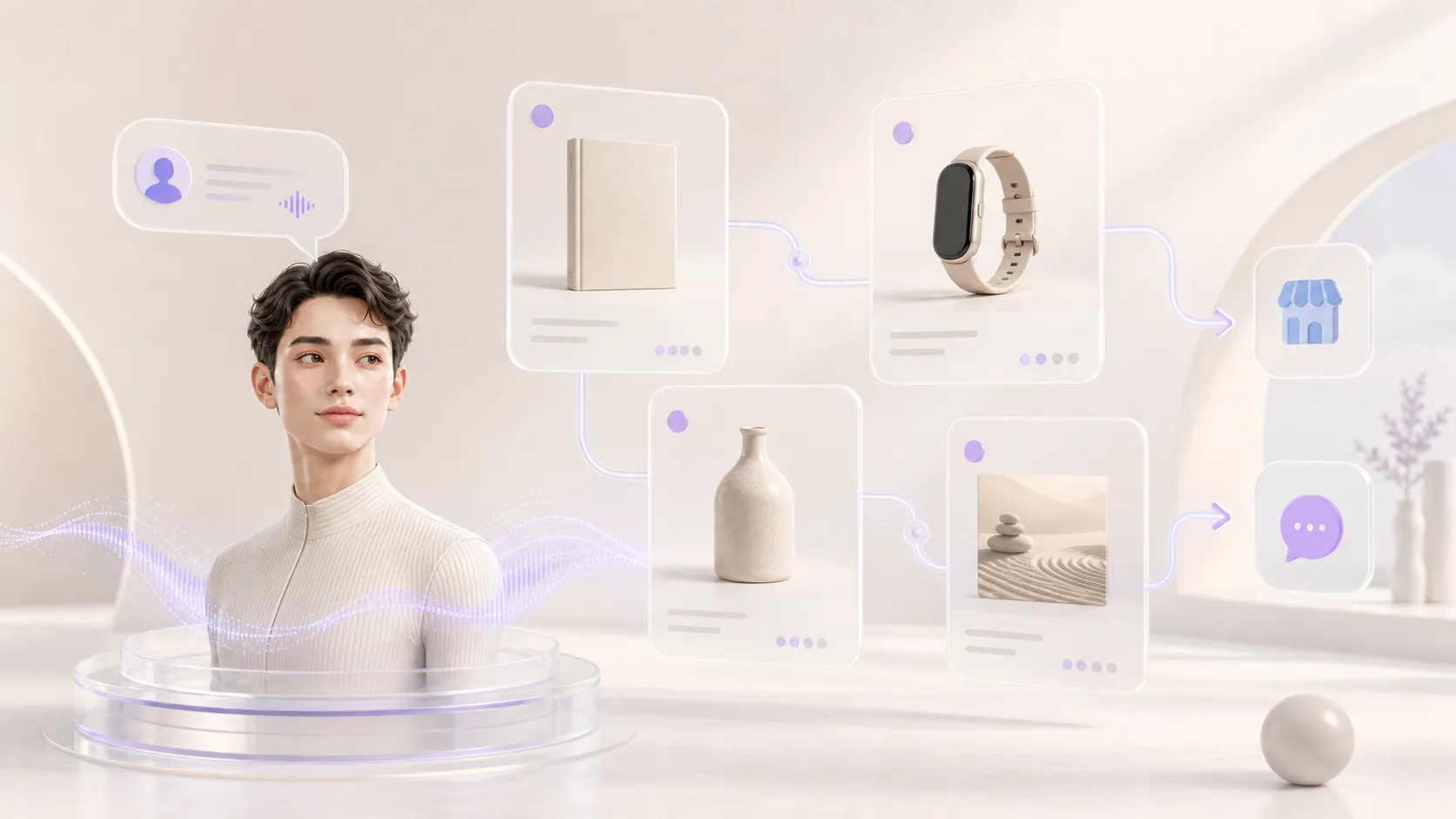
Products turn a conversation into an opportunity to discover, ask about, or purchase what you offer. In this final step, you will create the profile catalog, publish it, and decide how it can be used during conversations.
1. Enable the products feature
Open the profile and look for Products. If the section is not available yet, go to Settings and enable the feature. The Starter plan lets you manage up to 15 products per profile.
Before adding them, define a short, useful selection. A clear catalog works better than a long list of repeated or outdated options.
2. Create the first product
Select Add product and complete these elements:
- Image: a JPG, PNG, WEBP, or GIF photo up to 10 MB.
- Name: a clear title up to 180 characters.
- Description: up to 2,000 characters explaining what it is, who it is for, and why it is relevant.
- Destination: the link where a visitor can buy, book, or request more information.
The destination may be your store, a specific landing page, or a contact channel such as WhatsApp or Telegram. Always use a complete, active URL that matches the action you promise.
Save the product as a draft and review the resulting card. Check the image, wording, and link before publishing it.
3. Publish and enable recommendations
Only public products can be shown to visitors. When the content is ready, change its status to published. Then enable Use products in conversations so the profile can suggest them when a visitor’s question is relevant.
You can add guidance about how to recommend your products: which need each one addresses, when it should be mentioned, or which alternatives should be compared. Avoid instructions that force the profile to sell in every response; a useful recommendation should follow naturally from the conversation.
Run several tests as a visitor. Ask about different needs, confirm that each recommendation fits, and check that its link leads to the correct place.
4. Import multiple products with CSV
If you already have a catalog, prepare a CSV file with the required columns: name, description, image, and link. Check that every row is complete and that the image and destination URLs are publicly accessible.
The import creates products as drafts so you can verify them before publishing. Be mindful of duplicates and your plan limit; correct rejected entries and import only what is still needed.
Keep the catalog current. Remove products you no longer offer, fix broken links, and revise descriptions whenever their conditions change.
Watch the complete step
This video shows how to create, publish, and manage profile products:
Watch the video directly on YouTube
You have now completed all five steps: create the profile, personalize its presence, add knowledge, connect social networks, and display products. Test it once more as a visitor and publish it when the entire experience accurately represents what you want to communicate.